
Objetive:
In this article, we will show you how to edit your employees' personal information individually or in bulk so you can keep important employee data up to date.
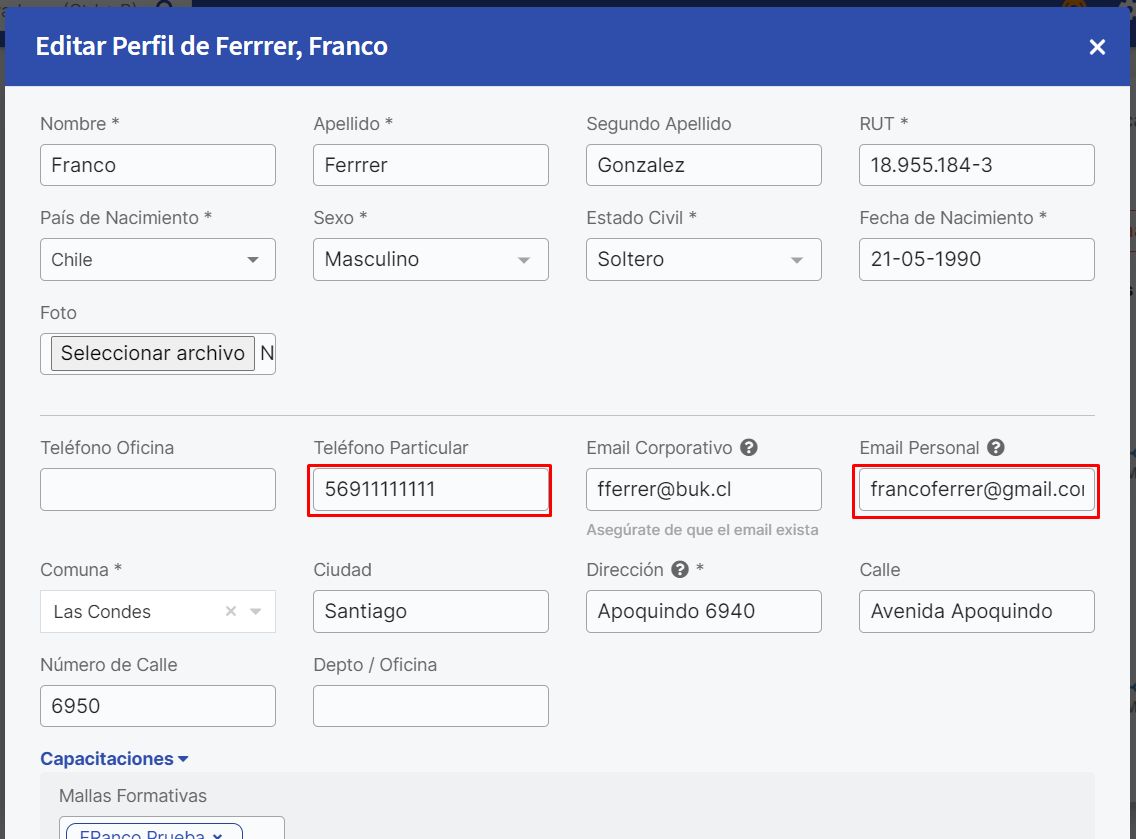
It also explains in detail how to modify the fields related to the employee's personal email and personal phone number.
Scope / Limitations:
This article applies to Buk clients who manage their payroll on the platform and will help them correctly configure their employees' personal information.
Definitions:
- Personal Email:This is the email where verification codes are sent to validate the digital signature. It is very important to note that institutional emails cannot be used, as this invalidates the electronic signature.
- Personal Phone Number:This is the phone number where verification codes are sent to validate the digital signature. It is very important to note that the format must be (area code) + (phone prefix) + (personal phone number), without spaces, periods, dashes, or "+" symbols.
Individual Platform Process:
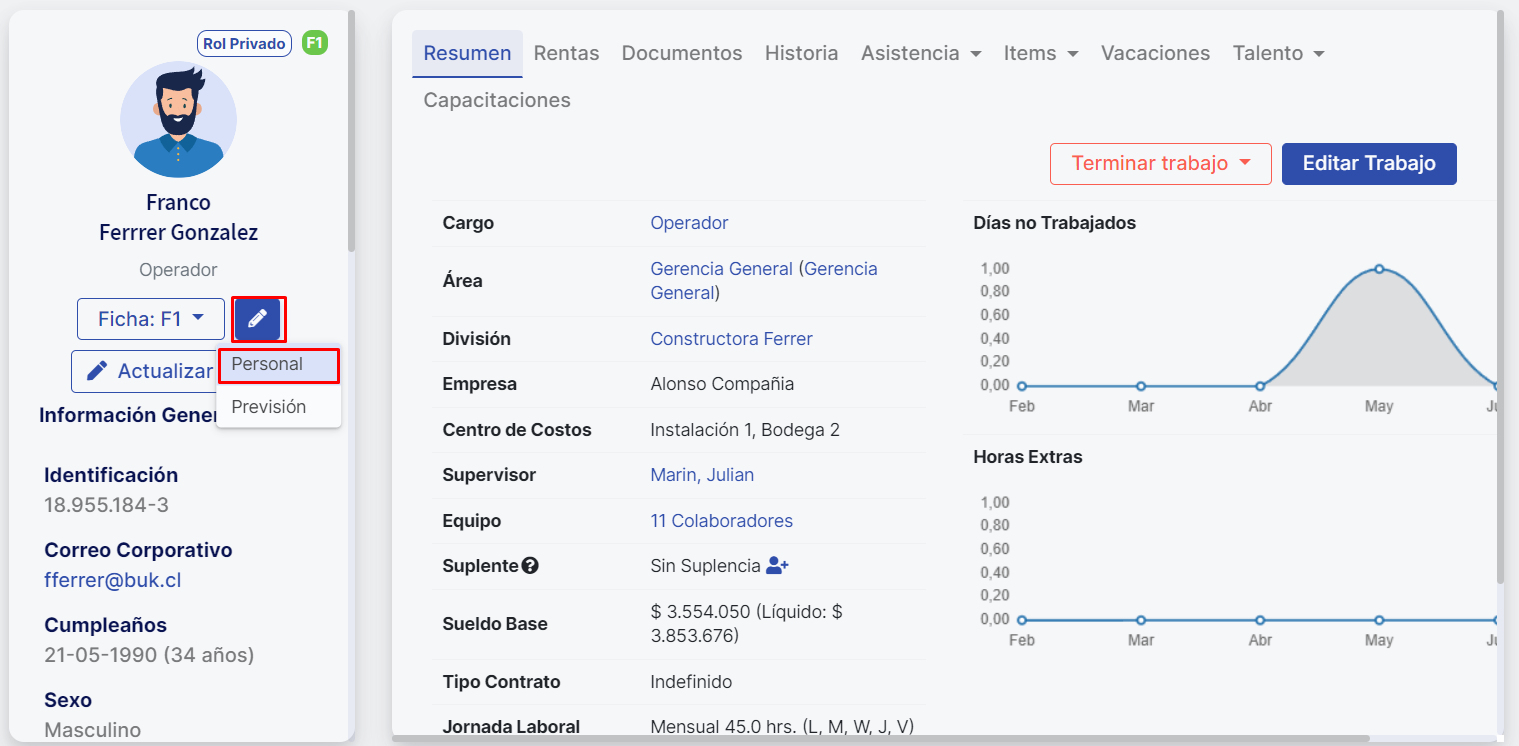
To modify personal information individually, you must go to the employee's profile. There, in the pencil icon (✏) located below their photo, you will find the section to edit: "Personal" (referring to personal information). Select "Personal" and there you can modify the information you need, such as photo, address, phone, email, city, district, bank, account number, etc.
For Personal Email and Personal Phone Number, you must enter the required information respecting the previously defined formats.
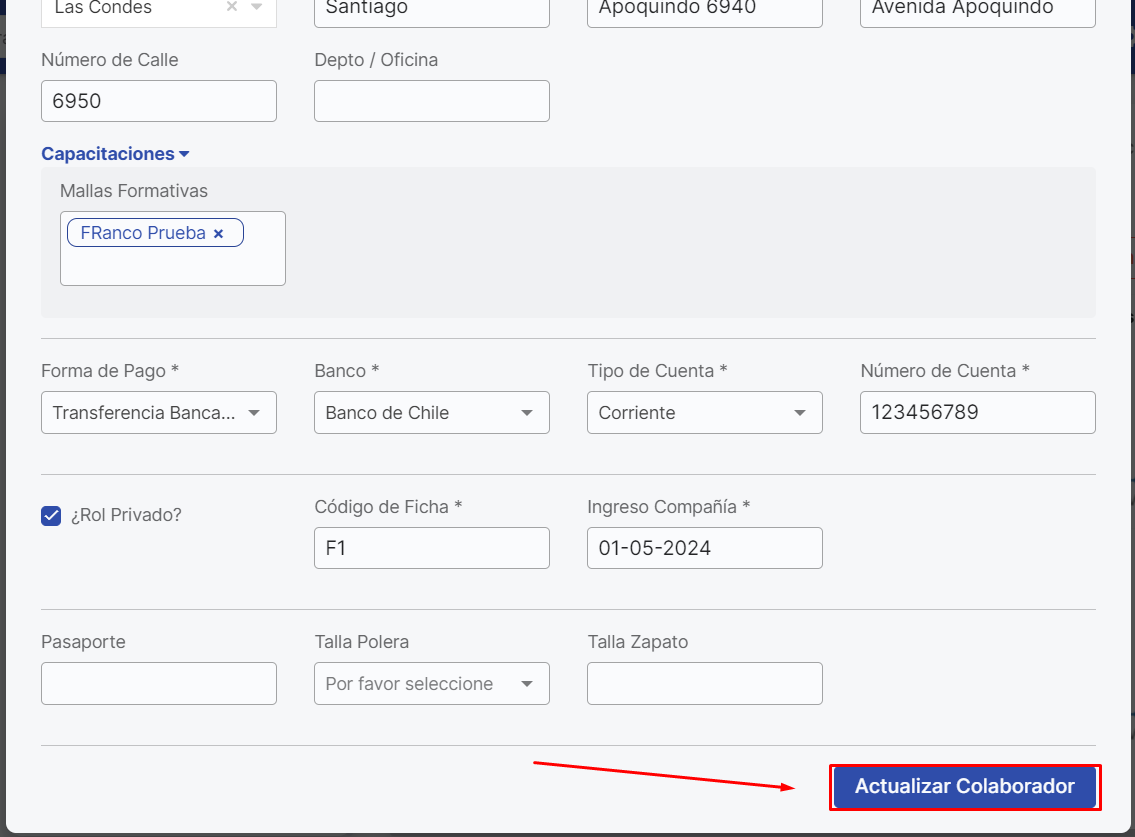
Once the information is updated, don't forget to select the blue button at the bottom of the page "Update Employee" to save the changes.
Bulk Platform Process:
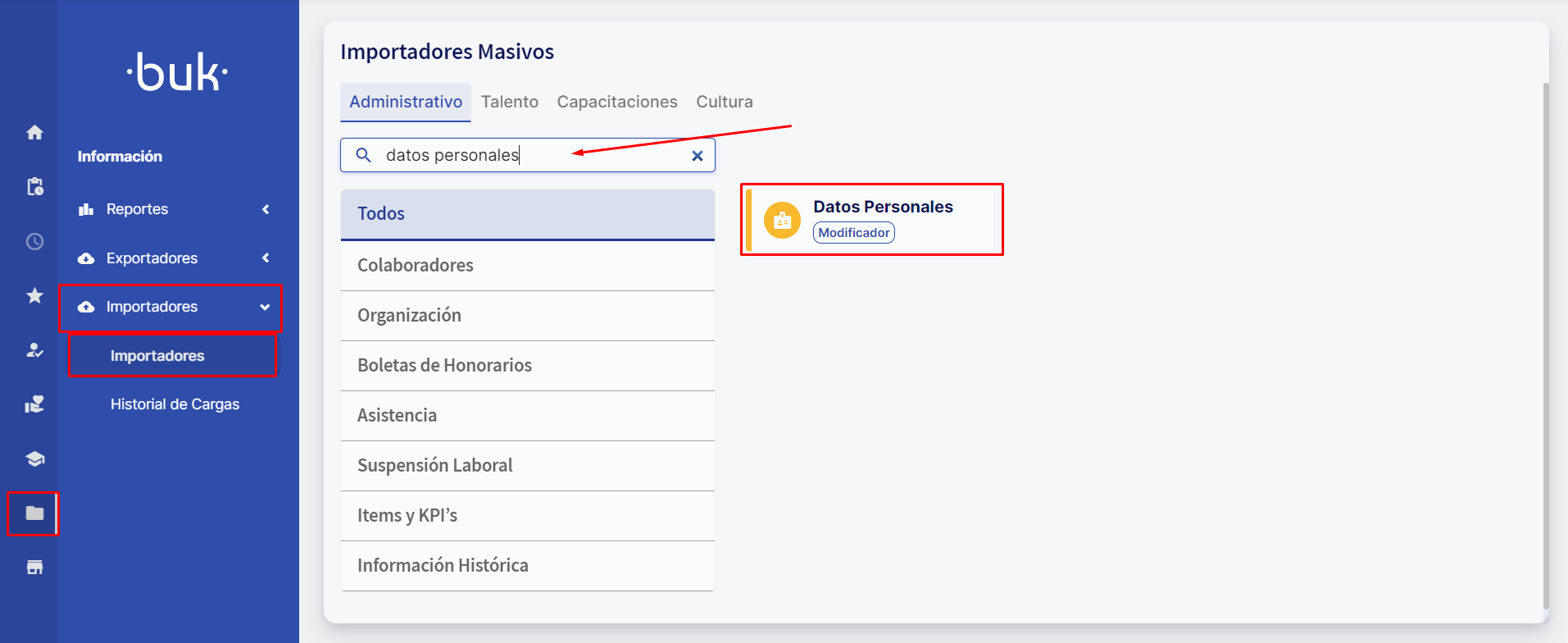
To modify your employees' personal information in bulk, you must go to the "Information" section under "Importers." Then, click on "Importers" and you will find the "Personal Data (modifier)" importer, where a list of fields you can select will be displayed.Remember that you can search for it by name in the search bar.
Select the fields you want to change and then download the template by clicking the "Download Template" button to get a spreadsheet where you can fill in the information in the corresponding columns. Keep in mind that the number of columns in the file you download will depend on the number of fields selected in the importer.
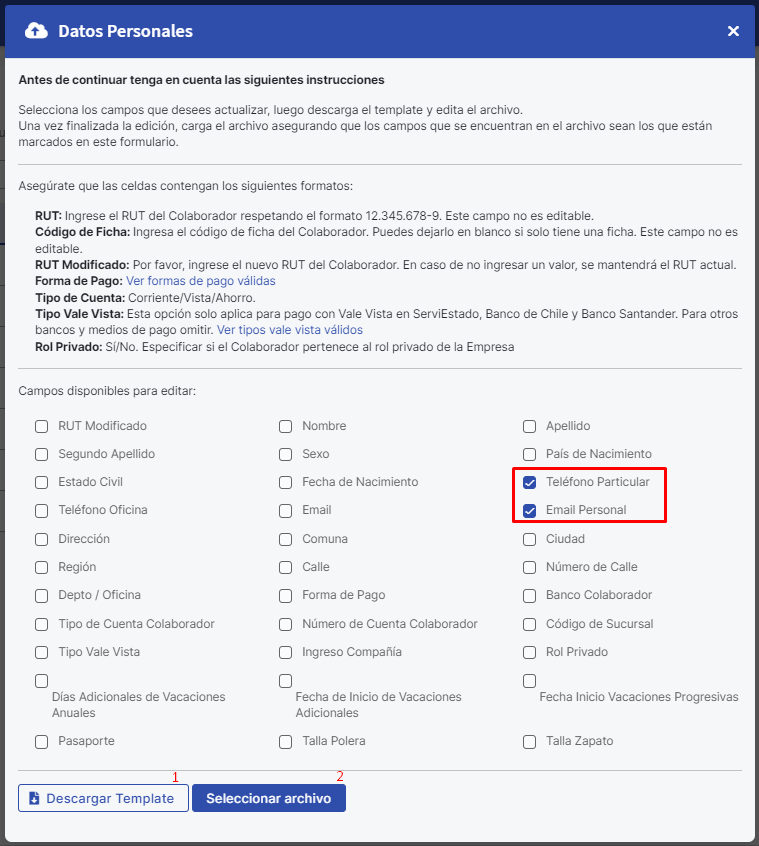
Once you have completed the information in the downloaded file, save the changes made in the file and simply click the "Select File" button to upload the information to the platform.
Required Modules:
- Base:Essential
- Modules:Electronic SignatureandDocument Management
Necessary or Associated General Settings:
For the signature and document management module to work properly, the general settings "Enable customizable templates" and "Enable Electronic Signature" must be activated. For this, you must contact the Customer Service team (SAC).

Keywords:
Electronic Signature, Digital Signature, Validation Code, Personal data update, Personal email, Personal phone number, Document Management.
You may also be interested in:
How to update employee personal data?
Remember, if you need help you can contact us through our support channels.
Chat | Phone | Email.
We are happy to help you!