This article aims to guide users through the process of reviewing performance evaluation reports on collaborator profiles and provide them with a comprehensive understanding of the available information.
Considerations:
- For the evaluation report to be visible on the collaborator's profile, the evaluation must be in the results or Feedback stage and the results must have been published by the administrator.
- If a report that has already been published is moved back a stage, it will cease to be visible to the collaborator until it is republished after completing the corresponding stage.
- If there are participants on leave or with pending evaluations, the report can be published as long as there are responses available for the participant. However, reports for those who have not completed their evaluation will not be available until they finish their process and it is published again.
Platform process:
Once the score reports of the performance evaluations have been published, both leaders and collaborators can review them directly on their profile. To do so, they must go to their profile, select the "Talent" tab and click on "Evaluations".
In"Previous evaluations",you can select the evaluation you want to review.
Here you'll find a summary of the evaluation, general reports, evolution, and the details of competencies and objectives. You can review them from the platform or download the report by clicking on "Export Evaluation".
-
Performance evaluation analysis:
This section presents an AI-generated summary that shows the main results of the performance evaluation. This analysis allows the collaborator to quickly understand how their performance was evaluated and identify development opportunities.
It's important to note that this section is available only to the collaborator who owns the profile. If another person has access to collaborators' profiles (for example, leaders or administrators), they will be able to view all evaluation sections allowed in the settings, except this one.
-
Evaluation summary:
In "Evaluation summary" you can review information such as the maximum score of the evaluation scale, the closing date, and the evaluators for the different evaluation types. You will also find the scores by evaluation type, the overall score for competencies and objectives, and the final score of the performance evaluation.
Importante: Si un tipo de evaluación tiene más de un evaluador, la nota final será el promedio simple de las notas de cada evaluador.
El cálculo de las notas de competencias, objetivos y la nota final dependerán de las configuraciones realizadas en la evaluación, los tipos de evaluaciones incluidos, los ponderadores y los elementos a evaluar.

-
General reports
In "General reports" you will find three tabs with charts of competencies and objectives. In "Competency Map", you can review the result of the competencies evaluated in each evaluation type through a radar chart. Hovering the cursor over a competency will show the corresponding score for each evaluation type. Remember that the score of each competency per evaluation type is calculated as the simple average of the competency's indicators.

In the "Competencies" and "Objectives" tabs you can review the scores of the competencies and the objective categories for the evaluation types using bar charts.

-
Evolution:
If you have previous performance evaluations conducted in Buk, you can review the evolution of the evaluation types. You can compare the current and previous score of each evaluation type and observe the percentage difference between them.

-
Competencies detail:
In "Competencies detail" you can review the score of the competency indicators in each of the evaluation types. The "final score" of each indicator will correspond to the weighted average of the scores in each evaluation type, using the weightings configured in the evaluation type weights.
-
Objectives detail:
In "Objectives detail" you can review the scores of all objectives in each category by evaluation type. If any objective has not been evaluated in a given evaluation type, you will see the "-" sign in its place.
★When you see astarnext to the score of an objective, it means that the objective hasoverachievement. This happens when not only is the maximum score defined for the objective reached, but it is also exceeded in at least one evaluation.
For the system to consider that there is overachievement, all evaluations of the objective must have, at minimum, the maximum score. For example, if the maximum score is 5.0, the results could be 5.0, 5.2 and 5.3. However, if any evaluation is below 5.0, it is not considered overachievement, even if others exceed the score.
Para que puedas ver el overachievement de los objetivos en tu evaluación, es necesario que, al configurar la evaluación, la integres con el Objectives progress tracking.
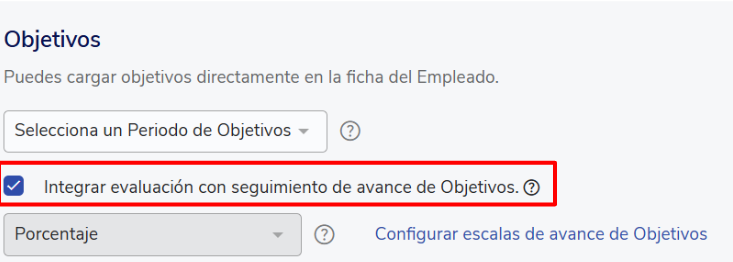
Además, debes asegurarte de que la/las progress scale/s que mide/n dicho/s objetivo/s esté configurada para permitir el sobrecumplimiento.
-
Feedback:
Additionally, if the performance evaluation process includes a Feedback stage, you can review here the Feedback comment provided by the collaborator's supervisor and the collaborator's response.
🤖 This article was translated using artificial intelligence. View original article.